
As you might have read in my previous post, after years of suffering with Windows Mobile, I finally have made the switch to Android by buying a Desire HD.
I was extremely happy with the fact that with the new version of sense that is on the Desire HD, you can add multiple exchange email accounts. However, one of the things that I could not find is to mark all messages in an email box as read. The only possible workaround I could find was to manually select each of the messages, after which I would press “Mark read”. If you have a lot of messages in the mailbox, this is a lot of work 
I thought that it should be possible to mark all messages at once, but I could not find anything about it on google. After some playing around with it, I finally got it
To mark all messages as read, you have to follow these steps:
- Open the HTC Mail app
- Select any of the messages - Press “Menu” button. Notice that this time it is different than pressing the button when nothing is selected
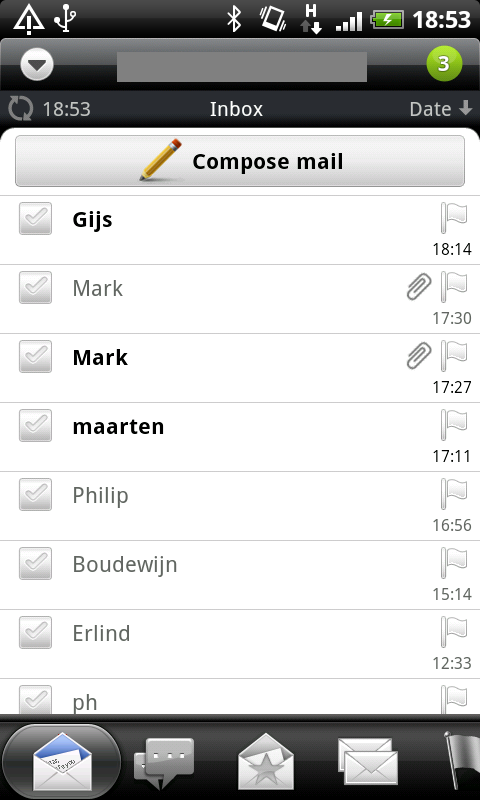 Marking all messages as read in HTC Mail app - Step 01
[](/content/images/2010/11/htc-mail-mark-all-as-read-02.png)Marking all messages as read in HTC Mail app - Step 02- Press “Select All” - Press “Mark as unread” - Repeat the steps to select all messages - Now press “Mark as read”
Marking all messages as read in HTC Mail app - Step 01
[](/content/images/2010/11/htc-mail-mark-all-as-read-02.png)Marking all messages as read in HTC Mail app - Step 02- Press “Select All” - Press “Mark as unread” - Repeat the steps to select all messages - Now press “Mark as read”and there you have it, all messages in your mailbox are now marked as read
Please note that you only need to do the steps for marking all messages as unread in case some of the messages in your mailbox are read and some are unread. In this situation, you only have the option to mark everything first as unread, after which you can select everything again and mark the messages as read.